
Annotation reference
The buttons of the palette
The highlighted button Annotate (in the color of the plug-in) inserts something new into the drawing; all other buttons change, check or open a dialog box. Every button shows a tooltip, an "i" opens an explanation.
Annotation page
| Element | Effect | More |
|---|---|---|
| "i" next to the title | What the page does, with "More in the online help". | The page |
| Gear | The palette menu. | The gear menu |
| Heading Templates with "i" | Folders, Automatic, styles, copying. | Templates |
| Search | Filters the tree by name, content, description, folder. | Searching and filtering |
| applies to | Filters the tree by part type; "other objects (lines, blocks …)". | Searching and filtering |
| Template tree: Automatic, folders, templates (click, double-click, right-click) | Choose a template, annotate right away, copy/paste styles. | Choosing a template |
| Pencil style at the right of a row (gray = from the folder) | The style dialog box of this template or folder. | Annotation styles |
| Lines below the tree | Content, "applies to" and – if not the default style – the style of the selected template; for a folder whether it gives a style. | Choosing a template |
| Edit / add template | The template editor, starting on the selected template. | Template editor |
| Heading Annotate with "i" | In short: following, Check, Reassign, Edit, free text, spot elevations. | Annotate section |
| Annotate | Click a part, place the text. | Annotating a part |
| Multiple … | One template on many parts. | Multiple |
| Edit | Change one (or preselected) annotation. | Edit |
| Check | Update all, show those without a part. | Check |
| Reassign | Attach an annotation to another part. | Reassign |
| Status line | Selected template, messages (style copied, pasted …). | Messages |
Shortcut menus
| Where | Entry | Effect |
|---|---|---|
| Template or folder in the tree | Style … | Like the pencil (gray if the folder gives the style). |
| Template or folder in the tree | Copy style (Ctrl+C) | All values of the effective style to the clipboard. |
| Template or folder in the tree | Paste style (Ctrl+V) | Take over the values (gray without copied values or if the folder gives the style). |
| Annotation in the drawing › LuaCAD | Edit annotation | The Edit annotation dialog box. |
| Drawing › LuaCAD | Annotation | Open the palette. |
All keys at the cursor
| Where | Key | Meaning |
|---|---|---|
| Annotate, step 1 (part) | Click / Enter / Esc | choose the part / done / done |
| Annotate, step 2 (text) | Click / Template option / Esc | place the text / another matching template / another part |
| Free text, step 1 (anchor point) | Click with object snap / Enter | anchor point / done |
| Free text, step 2 (text) | Click / Esc | place the text / another anchor point |
| Multiple › selection window | window, Enter / Esc | done / back to the dialog box |
| Multiple › network | Click / Esc | annotate the network (several times) / back to the dialog box |
| Edit | Click / Enter | choose the annotation / done |
| Reassign | Click, click / Esc | annotation, then part / another annotation |
| Picking (style) | Click / Esc | take over / back without a change |
| Select template window | Double-click, Enter / Esc | apply / keep the previous template |
Shift and Ctrl are not used at the cursor (they belong to GstarCAD). When clicking parts the cursor shows the pickbox; object snap is off meanwhile.
The gear menu
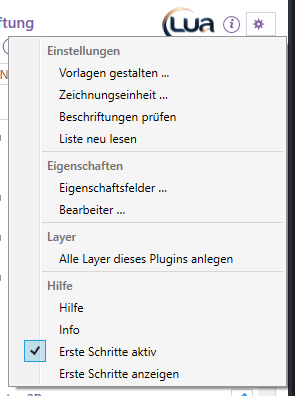
| Group | Entry | Effect |
|---|---|---|
| Settings | Design templates … | The template editor – like Edit / add template. |
| Settings | Drawing units … | In which unit new parts are created and boxes show lengths – for all plug-ins, see Drawing units. |
| Settings | Check annotations | Like the Check button. |
| Settings | Reload list | Read templates and choice again (for example after an import by another way). |
| Properties | Property fields … | Which property fields exist – the same dialog box in all plug-ins, see Property fields. |
| Properties | Author … | The name in isometric, lists, IFC and clash list – for all plug-ins, empty by default. |
| Layer | Create all layers of this plug-in | Creates the annotation layers that are missing – see Layers. |
| Help | Help | Opens this online help in the browser. |
| Help | Info | Version of LuaCAD and contact. |
| Help | Getting started active | Cards of the page for this plug-in on or off. |
| Help | Show Getting started | The tip wizard guides you through the palette. |
The LuaCAD settings (for all plug-ins) are on the ribbon › LuaCAD tab – see Getting started. Levels and reference levels for elevations are kept in the project.
Dialog boxes
Template editor
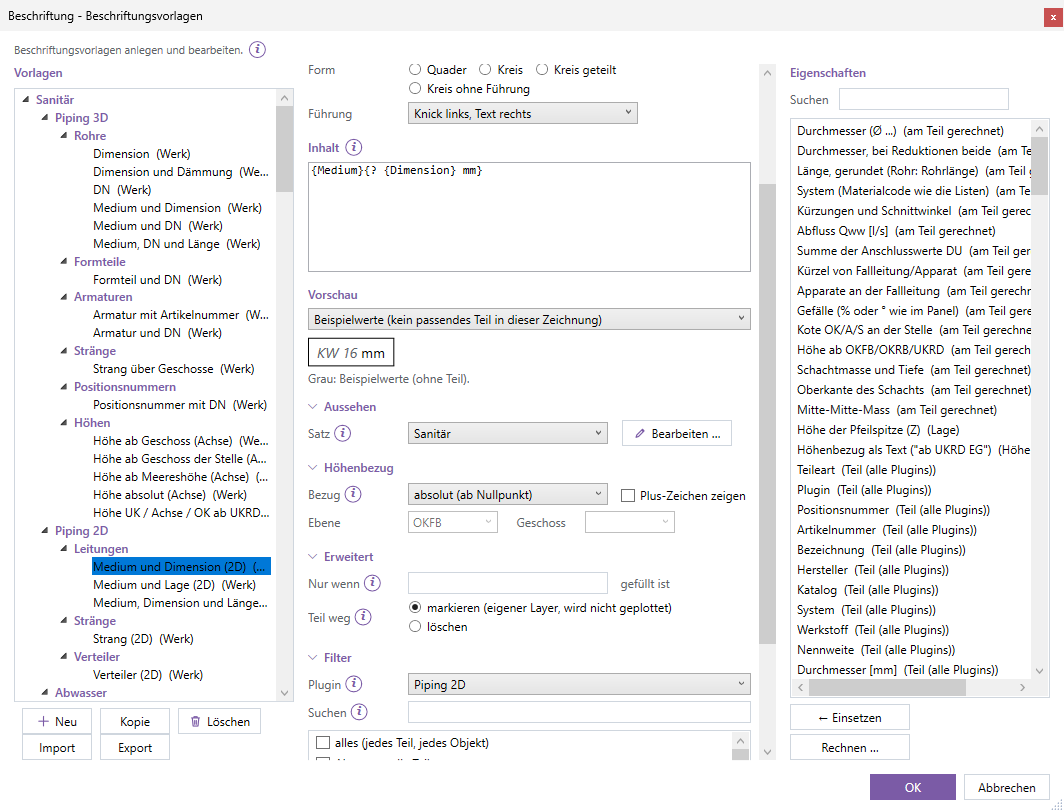
Palette › Edit / add template or gear › Design templates … (from "Edit annotation" › Edit template … on the template of this annotation). Title "Annotation - Annotation templates"; an "i" at the top. The dialog box can be resized.
| Area | Content |
|---|---|
| Left: templates | The tree with folders; "(default)", "(default, changed)" after the name. Below it New, Copy, Delete, Import, Export. Opened from a plug-in also "show all plug-ins". |
| Middle top: template | Default note or description; name, folder (with "i"), form, leader; content (with "i"); preview with the list of sample parts, gray notes below. |
| Middle, collapsed | Appearance, Elevation reference, Advanced, Filter – see below. |
| Right: properties | Search, the list of fields (double-click inserts), ← Insert, Calculate …. |
| Bottom | OK saves all templates, Cancel discards. |
Every field: Template editor in detail. Task: The template editor.
Editor: Appearance
Style (with "i"): the annotation style of the template, next to it Edit … (the style dialog box to choose and change). If the folder gives a style, the list is gray and below it you see the folder and its style. Collapsed, the header names the effective style.
Editor: Elevation reference
Reference (with "i") and Show plus sign; reference level and level (only available for a level reference or a fixed level); for "above sea level" the sea level elevation (with "i") instead. Collapsed, the header names the reference ("absolute", "from FF (level of the drawing)" …). Task: Elevation reference of a template.
Editor: Advanced
Only if … is filled (with "i") and Part removed: mark (own layer, not plotted) | delete. Collapsed, the header names what is set. Task: Only if and Part removed.
Editor: Filter
Plug-in (with "i"), Search (with "i") and the list to check. Collapsed, the header names the choice or "applies everywhere". Task: Filter.
Annotation style
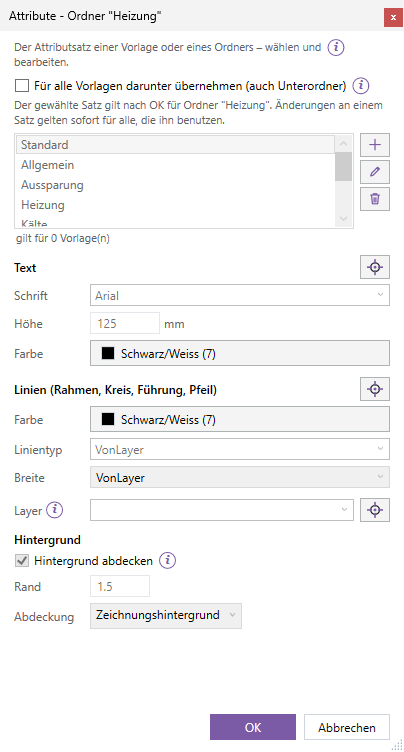
Palette › pencil style in the row of a template or folder (right-click › Style …), in the editor Appearance › Edit …. The title names the template, the folder or "choose and edit style"; an "i" at the top.
| Element | Effect |
|---|---|
| Check box "Apply to all templates below (also subfolders)" (folders only) | On: all templates in the folder and below take the style of the folder, their own style rests; off: every template takes its own style again (the area below is gray then). Applies to new annotations. |
| Note "The selected style applies after OK to …" | Whom OK gives the style. |
| List of styles, +, pencil, trash can | Choose a style; new, rename (also double-click), delete. |
| applies to n template(s) | How many templates use the style. |
| Text: font, height, color, Pick button | Look of the text; Pick button picks. |
| Lines (frame, circle, leader, arrow): color, linetype, lineweight, Pick button | Look of the lines; Pick button picks. |
| Layer (with "i"), Pick button, "Empty: layer …" | Layer of the annotations; Pick button picks. |
| Background: background mask (with "i"), border offset factor, mask, color | Whether and with what the background is masked. |
| OK / Cancel | OK assigns the style (folder: with a question if templates inside have own styles). Values of the style are already saved while changing – Cancel only undoes the assignment. |
The dialog box can be resized. Every field: Annotation style in detail.
Annotate multiple
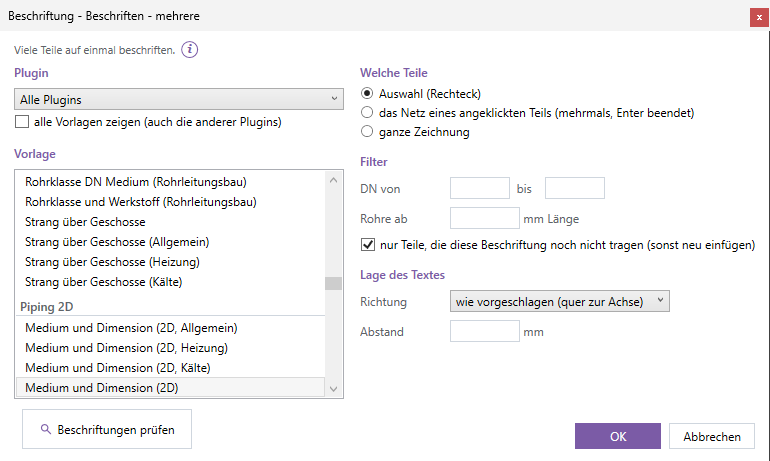
Palette › Multiple …. Title "Annotation - Annotate multiple"; an "i" at the top (how the search for a free position works).
| Area | Content |
|---|---|
| Plug-in | All plug-ins or one (also blocks / fixtures); below it "show all templates (also those of other plug-ins)". |
| Template | The templates grouped by plug-in (without free text). |
| Which parts | selection window or "the selected objects (n)" · the network of a clicked part (several times) · whole drawing. |
| Filter | part type, system, DN from / to, pipes from … length, "only parts that do not carry this annotation yet (otherwise insert again)". |
| Text position | direction, distance. |
| Check annotations | Like Check, then end. |
| OK / Cancel | Annotate or end. |
Every field: Multiple in detail. Task: Multiple.
Edit annotation
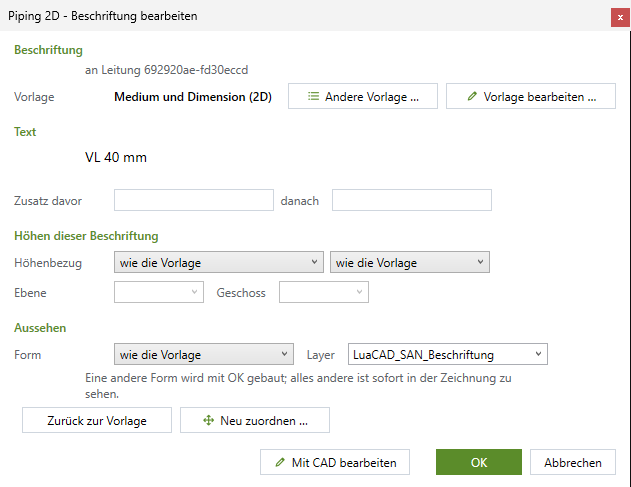
Palette › Edit and click an annotation, double-click an annotation, right-click › LuaCAD › Edit annotation. Title "Annotation - Edit annotation".
| Element | Effect |
|---|---|
| Heading "annotation" or "n annotations (together)", "on <part> - <state>" | What is edited. |
| Orange line about a manually edited text | Only for a manually edited text. |
| Template, Other template …, Edit template … | Change the template (new snapshot) or open the editor on it. |
| Text | The text as it is in the drawing now; below it the note about overrides. |
| Prefix, suffix | Before the first or after the last line. |
| Elevations of this annotation: elevation reference, plus, reference level, level | Override of the elevation reference. |
| Appearance: form, layer | Override of form and layer; another form is built with OK, everything else is visible at once. |
| Reset to template | Remove everything overridden, take the current template again. |
| Reassign … | After OK click another part. |
| Edit in CAD | Open the GstarCAD text editor (only for one). |
| OK / Cancel | Apply / restore everything. |
Every field: Edit annotation in detail.
Select template (at the cursor)
Annotate › step 2 › Template option, and "Edit annotation" › Other template …. Heading "Template for this part", the templates by plug-in, each with the text for this part. Double-click, Enter or OK applies; Cancel keeps the previous one. It can be resized.
Check (result)
Check has no dialog box of its own: the result is in the command line (how many annotations, orphaned, waiting for their part, edited manually), the orphaned and the waiting annotations are selected and zoomed to. See Check.
Reassign
Reassign has no dialog box: two clicks at the cursor (annotation, then part), guided by the command line. See Reassign.
Drawing units
Gear › Drawing units … – the same dialog box in all plug-ins: in which unit boxes show lengths and new parts go into the drawing (automatic, mm, cm, dm, m). The text height of an annotation style applies in mm in model space and comes in with the factor of the drawing. Details: Drawing units.
Layers
Gear › Layer › Create all layers of this plug-in opens no dialog box: LuaCAD creates the annotation layers missing in the drawing – general annotation, dimensions, schedules, orphaned annotation, the annotation layers of the disciplines (plumbing, heating, ventilation, cooling), openings, process piping and general annotation – and reports how many it created. Existing layers stay as you set them. Useful for an office template. See Layers.
Property fields
Gear › Properties › Property fields … – the same dialog box in all plug-ins: which fields exist on parts (own fields 50–99). In a template you insert a field with {Feld:KEY}, its name with {Feldname:KEY}. Every property: Property fields in detail.
Questions
| Question | When | Choice |
|---|---|---|
| n template(s) in folder … have own styles … | Style of a folder with OK when templates inside have own styles (also pasting on a folder). | Replace own styles of n template(s) · Cancel |
| Delete style …? n template(s) take "Standard" afterwards. | Deleting a style in the style dialog box. | Yes · No |
| Delete the template …? Annotations using it keep their content. | Deleting a template of your own in the editor. | Yes · No |
| The changes in this dialog box will NOT be applied … | Edit in CAD after changes in the dialog box. | Yes · No |
Every setting in detail
Here you find every annotation setting – in the palette, in the gear menu and in the dialog boxes – with its effect, the default value and an example. Templates and styles apply to annotations you place afterwards. A "–" in the "Default" column means: the value depends on the template or the drawing. Number boxes calculate ("2.5*50" becomes 125).
Palette
| Setting | What it does | Default | Example |
|---|---|---|---|
| Selected template | Which template Annotate and Multiple use; empty = Automatic. Remembered. | Automatic | System and size |
| Search | Filters the tree (name, content, description, folder); while searching all folders open. Not remembered. | empty | "slope" |
| applies to | Filters the tree by part type (from all templates); "other objects (lines, blocks …)". Remembered. | all part types | Duct |
| Collapsed folders | Which folders of the tree are closed. Remembered. | all open | Floor Heating closed |
Template editor
| Setting | What it does | Default | Example |
|---|---|---|---|
| Name | Name of the template, unique; fixed for default templates. | new: "New annotation" | Pipe with room |
| Folder | Where the template is in the tree; choose or type a path with "/". | new: selected folder, otherwise "Custom" | Plumbing/Site |
| Form | text with leader · no leader · with frame · box · circle · divided circle · circle, no leader. | new and default templates: with frame | circle |
| Leader | landing at left, text at right · single vertical line, centered; gray without a visible leader. | landing at left, text at right | single vertical line |
| Content | Text with fields, one line per line. | new: {Bezeichnung} | {Medium} DN {DN} |
| Preview: sample part | Which part of the drawing the preview uses; "sample values (without part)". Display only. | the first matching one | – |
| Appearance › Style | The annotation style of the template (gray if the folder gives one). | new: Standard; default templates: the default style of their discipline | Ventilation |
| Elevation reference › Reference | absolute (from project zero) · from home level · from level (empty = level of the drawing) · above sea level. | absolute | from home level |
| Elevation reference › Show plus sign | Values above the reference level with "+", on it "±". | off (default elevation templates: on) | on |
| Elevation reference › Reference level | TOS, FF, FC, BOS or one of the project's own reference levels. | FF | BOS |
| Elevation reference › Level | Abbreviation of the fixed level; empty = level of the drawing. | empty | 1F |
| Elevation reference › Sea level elevation | Sea level elevation of ±0 (only "above sea level"), in the unit of the levels. | 0 | 432.10 |
| Advanced › Only if | Required fields with commas; one empty = no annotation. | empty | Position |
| Advanced › Part removed | mark (layer "Orphaned annotation") · delete. | mark | delete |
| Filter › Plug-in | Under which plug-in the template is listed (plug-in lists). | new from the palette: General | Ventilation |
| Filter › List | What the template applies to; nothing = everywhere. | new from the palette: everything | Ventilation: Duct |
| show all plug-ins (only from a plug-in) | Also the templates of the other plug-ins in the tree; remembered for the session. | off | on |
Annotation style
| Setting | What it does | Default | Example |
|---|---|---|---|
| Style (list) | Which style is shown, edited and assigned with OK. | the style of the template or folder | Standard |
| Apply to all templates below (check box, folders only) | The style of the folder applies to all templates in the folder and below, their own style rests. | off | on for "Ventilation" |
| Font | Text style of the drawing or a font (becomes a text style); empty = current text style. | Arial | Romans |
| Height | Text height in model space; empty = as the plug-in (blocks, other objects 100 mm). | 125 mm | 250 (plot 1:100) |
| Color (text) | GstarCAD color dialog box, also ByLayer, ByBlock. | 7 | 1 (red) |
| Color (lines) | Color of frame, circle, leader, arrow. | 7 | ByLayer |
| Linetype | Name from the drawing or gcadiso.lin (loaded when inserting); ByLayer, ByBlock. | ByLayer | DASHED |
| Lineweight | Lineweight as in GstarCAD; ByLayer, ByBlock. | ByLayer | 0.35 mm |
| Layer | Layer of the annotations; empty = layer of the discipline of the default style or of the part, otherwise the general annotation layer; a new name is created when inserting. | empty | Annotation site |
| Background mask | Text or frame masks the lines below (screen and plot). | on | off for shop drawings |
| Border offset factor | Factor like the GstarCAD border offset, 1 to 5; in a frame always the whole frame area is masked. | 1.5 | 1 |
| Mask | drawing background color · own color (then the color button); a circle always masks with the background. | drawing background color | own color 254 |
The default styles Plumbing, Heating, Cooling, Ventilation, Openings, Process piping and General have the same values as Standard plus the layer of their discipline (General: "General annotation"). Every change is saved immediately.
Multiple
| Setting | What it does | Default | Example |
|---|---|---|---|
| Plug-in | Only the parts of this plug-in; the template list then shows the general ones and those of the plug-in. | all plug-ins | Ventilation 3D |
| show all templates | Also the templates of the other plug-ins. | off | on |
| Template | What is placed. | the one selected in the palette, otherwise the last used | Nominal size and slope |
| Which parts | selection window · the network of a clicked part · whole drawing. Preselected objects = selection. | selection window | whole drawing |
| Part type | Only this part type; (all). Missing if there is only one. | (all) | Pipe |
| System | Only this system; (all). | (all) | CW |
| DN from / to | Nominal size or diameter; empty = no limit. | empty | 32 / 100 |
| Pipes from … length | Shorter pipes get no annotation; empty = all. | empty | 500 |
| only parts that do not carry this annotation yet | On: skip parts already annotated; off: place their annotation again. | on | off after a template change |
| Direction | as suggested (across the centerline) · top right · top left · bottom right · bottom left. | as suggested | top right |
| Distance | Distance from the edge of the part; empty = as suggested. | empty | 300 |
All values are remembered.
Edit annotation
| Setting | What it does | Default | Example |
|---|---|---|---|
| Template | The template of the annotation; another one gives a new snapshot. | the placed one | Size |
| Prefix / suffix | Text before the first or after the last line. | empty | "approx." / "(existing)" |
| Elevation reference | as the template · absolute (from project zero) · from home level · from level (empty = of the drawing) · above sea level (value of the template). | as the template | absolute |
| Plus | as the template · show plus sign · no plus sign. | as the template | no plus sign |
| Reference level, level | As in the editor; available only for a level reference or a fixed level. | empty | BOS, GF |
| Form | as the template · text with leader · with frame · circle · divided circle · text only, no leader · box (framed text, no leader) · circle, no leader. | as the template | text only, no leader |
| Layer | Another layer for this annotation (list of the drawing). | the placed one | Annotation existing |
Overridden values stay on the annotation, also when updating; Reset to template removes them.
Typical messages and errors
The messages appear in the command line or in the status line of the palette.
| Message | Meaning | What to do |
|---|---|---|
| Nothing to annotate there. | No part and no object at the click. | Click the part more precisely. |
| The template does not fit this part type. | The selected template does not apply to this part type. | Choose Automatic or a matching template. |
| No annotation template exists for this part type. | No template applies to this part type. | Create one in the editor or widen the filter of a template. |
| The template gives no text for this part – nothing inserted. | All fields empty or "Only if" not met. | Another template; check the values on the part. |
| The template chosen at the cursor stays empty for this part. | The chosen template gives nothing here. | Choose another one. |
| The drawing has no levels – the elevation is absolute. | Elevation reference from a level without levels. | Create levels in the project or keep absolute. |
| The level … does not exist in this drawing – the elevation is absolute. | Fixed level with an unknown abbreviation. | Correct the abbreviation in the template or the dialog box. |
| The point lies in no level – measured from the current level … | The arrowhead lies above or below all levels. | Check whether the elevation is right. |
| The reference level … is missing in level … – the elevation is absolute. | The reference level of the template does not exist in that level. | Choose a reference level the project knows. |
| Free text inserted – it is attached to no object. | A template without a field was placed. | Nothing – as intended. |
| … is free text without a part – insert it one by one with Annotate. | Multiple with free text. | Use Annotate. |
| Templates saved – they apply to new annotations … | After OK in the editor. | Placed ones if needed with Edit › Reset to template. |
| Applies to new annotations – placed ones keep their look … | After OK in the style dialog box. | As above. |
| n annotation(s): n orphaned, n waiting for their part, n edited manually … | Result of Check. | Reassign, delete or Reset to template. |
| There is no LuaCAD annotation there. | Edit or Reassign on the wrong object. | Click the text of the annotation. |
| The annotation is now attached to … | Reassign is done. | – |
| Annotation unchanged. | Edit with Cancel. | – |
| The arrowhead is not on its object – it returns to the previous anchor point … | The tip was dragged beside the part. | Drag it onto the part; for another part use Reassign. |
| That was no text … / Nothing there … | Picking on the wrong object. | Click again. |
| The clipboard holds no LuaCAD style. | Paste without copying. | Copy a style first. |
| The style comes from the folder … | Paste or style on a template whose folder gives the style. | Change the style on the folder or clear its check box. |
| "Standard" and the default styles cannot be renamed / deleted. | Renaming or deleting a fixed style. | Create a new style. |
| A default template cannot be deleted. | Deleting an unchanged default template. | Nothing – changed default templates can be reset. |
| Every template needs a name. / The name … exists twice. | OK in the editor. | Give or change the name. |
| The file is no annotation template. / The file contains no annotation template. | Import of a wrong file. | Choose an exported template file. |
| Layer … is locked – part not changed. | The annotation is on a locked layer. | Unlock the layer. |
| Check did not work – details in the log. | An error while updating. | Try again; otherwise send the log to support. |