
Editing openings
Change properties
Goal: change dimensions, clearance, type, disciplines, description or the display in the plan of a placed opening.
- In the palette under Edit click Change properties. The command line says "Change properties: click the opening, Enter ends".
- Click an opening – 2D or 3D. The cursor is a pickbox; the opening below it is highlighted. Where 2D and 3D lie on top of each other, the click takes the side that matches the display in the palette.
- The dialog box opens with the values of the opening, the opening stays highlighted. Change what is needed – fields as when inserting, see The Dimensions dialog box. In addition there is Fixed point (see below).
- OK. The opening is created again with the new values – identifier and number stay. If it has a partner, the partner follows; the command line says "Linked opening updated: …".
- Click the next opening or press Enter or Esc – done. Cancel in the dialog box leaves the clicked opening unchanged and asks for the next one.
Options
- The form (box or cylinder) stays; under Type only the types of the same form are listed.
- Display in the plan (2D) appears only in the dialog box of a 2D opening.
- For a pair a note at the bottom says what the other side does: at the 2D "The linked 3D opening changes too (dimensions, type, location in plan) - its bottom stays.", at the 3D "The linked 2D opening follows".
- When changing, the look (layer, color, hatch) comes anew from the display by type.
- Each change is its own undo step; U undoes both sides of a pair.
- Missed click: "There is no opening there - please click an opening, or Enter to finish."
Fixed point
Goal: set from which point an opening grows or shrinks when its dimensions change.
- In the Change properties dialog box open the Fixed point list. Preselected is the base point the opening was inserted with.
- Choose a point: Center (without base point) – it grows equally to all sides – or a base point without or with clearance ("bottom left corner", "bottom left corner with clearance" …).
- Change the dimensions, OK. The fixed point stays in place; afterwards it is the base point of the opening.
If a clearance is dropped, "bottom left with clearance" becomes the point "bottom left". Which points exist: Base point.
Delete
Goal: remove openings – a pair always completely.
- In the palette click Delete. The command line says "Delete: click the opening, Enter ends".
- Click openings one after the other. Each is gone immediately; the command line names it ("Deleted: …"). If it has a partner, the partner goes along without asking ("1 linked opening(s) deleted along").
- Enter or Esc ends; the command line states the number.
With ERASE of GstarCAD it works the same way – there, too, the partner goes along. U brings back a deleted opening together with its partner. What happens to the annotations of a deleted opening is set by its annotation template (in the template editor under "Advanced", see Annotate).
Converting 2D to 3D
Goal: create the 3D solids for plan symbols that are already drawn – for example for the clash check or the IFC.
- In the palette under 2D and 3D click 2D → 3D …. If openings are already selected, LuaCAD takes these.
- Otherwise the command line asks: "click 2D openings or drag a window (Enter without selection = all without 3D, Esc = cancel)". Select as with every GstarCAD command (click, window, crossing), then Enter.
- Enter without a selection takes all 2D openings of the drawing.
- Every selected 2D without a partner gets a solid with its dimensions, at the same place in plan, rotated the same way, bottom at elevation 0. The command line says how many are new and how many already had a 3D.
Afterwards 2D and 3D are a fixed pair with the same number. The whole thing is one undo step. Set the elevation afterwards with MOVE in Z – the 2D stays. No 2D opening among the selected objects: "Among the n selected objects there is no 2D opening - nothing converted."
The fixed 2D/3D pair
Goal: understand what happens to the other side when you change one side.
| You change … | at the 2D | at the 3D |
|---|---|---|
| location in plan (MOVE, grip, palette) | the 3D follows in X and Y, its elevation stays | the 2D follows |
| rotation (ROTATE) | the 3D rotates along | the 2D rotates along |
| dimensions, type (Change properties, grips of the 2D) | the 3D changes too, its bottom stays | the 2D follows (the abbreviation of the new type) |
| only the elevation of the 3D (MOVE in Z) | – | the 2D stays |
| number, property fields (palette) | the partner gets the same | the partner gets the same |
| delete | both are gone | both are gone |
| copy | the copy has no partner | the copy has no partner |
If both sides are moved in the same command (both selected), neither follows the other – each already has its own movement. With U and Redo GstarCAD restores the earlier state of both sides; LuaCAD does not update anything then. A pair is linked only as long as both sides point to each other and exist – after deleting one side and U it is linked again.
Grips and CAD commands
Goal: edit openings with the familiar commands of GstarCAD.
| Command | What happens |
|---|---|
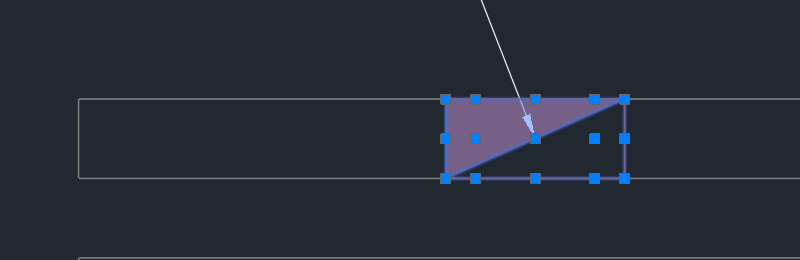
| Grips on a 2D | corners and edge midpoints – outside on the outline with clearance, inside on the net dimensions. Width or depth is dragged; the opposite edge stays put, the net dimension never becomes smaller than 1 mm. For a circle the grip changes the radius. The 3D follows. |
| STRETCH on a 2D | like the grips: the captured edges move. |
| MOVE, ROTATE, MIRROR | The opening is created again at the new place; the partner follows (see The fixed pair). |
| COPY, also multiple | Every copy gets a new identifier and a new number and is never linked. |
| STRETCH, SCALE, scale in the palette on a 3D | The solid jumps back: "Change dimensions with "Change properties"." |
| ERASE | The partner goes along. |
Everything LuaCAD updates is in the same undo step as your command. A solid that was not rotated only about the vertical axis (for example with 3DROTATE) keeps only the rotation about the vertical axis. If an opening is on a locked layer, LuaCAD changes nothing about it and reports it.
In the Properties palette
Goal: change the number and property fields of an opening without the dialog box.
- Click the opening (without a command). The Properties palette shows its property fields: Number, Approval, Firestop rating, Description, Additional description and your office's own fields.
- Change a value. For a pair the partner gets the same value a moment later.
- Changing the Position of the block reference works like MOVE: LuaCAD creates the opening again there.
Change dimensions, type and display with Change properties. Which fields exist: gear menu › Property fields … (Openings tab). A changed number appears in the annotation of the opening right after the command; a legend in the drawing shows "outdated" in its title until you update it (see Update legend).