
Blocks in the drawing
The blocks of the drawing
Goal: see which blocks of the library are in the drawing, and find them there again.
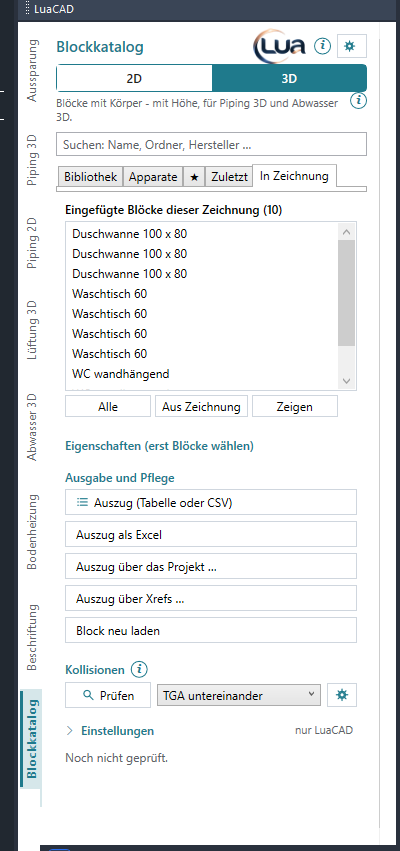
- Choose the Current Drawing tab. The list shows all blocks of the Block Library in the model space of the active drawing, sorted by name – per row name, room and level (where filled in). The tooltip of a row names handle and position.
- The search box at the top filters the list ("Inserted blocks of this drawing (3 of 12)").
- Select one or several blocks: click, Ctrl-click, Shift-click – or All.
- Show selects the blocks of the list in the drawing (with grips) and zooms to them in plan view.
- From drawing takes the blocks selected in GstarCAD into the list; if nothing is selected, select them now and confirm with Enter. Only blocks of the library count.
The list follows the active drawing and is read again after every change made by the Block Library. Without blocks it says "There is no block of the Block Library in this drawing yet."
Changing several blocks at once
Goal: set a value – for example the room or the description – in many blocks at once.
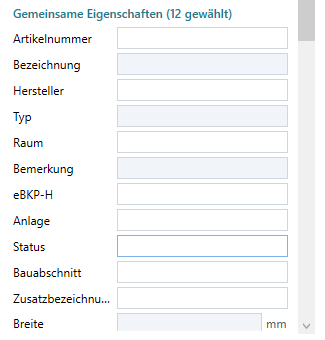
- Select the blocks in the list. Below appears Common properties (n selected) – one row per field: the property fields and the dimensions.
- If all have the same value, it is in the field; if the values differ, the field stays empty and gray (the tooltip names up to five of the values).
- Change only the fields that are to apply to all.
- Apply to n block(s) – only changed fields go into the selected blocks. The command line says "Block Library: n value(s) changed in m block(s)."; the selection in the list stays.
A new width, depth or height scales the blocks, a new distance CW–HW or a new water connector elevation moves the connectors. Everything is one undo step – U undoes it. An invalid value gets a red border with the reason at the bottom; then nothing is applied. If nothing was changed: "No field changed."
Changing in the Properties palette
Goal: change a placed block individually – dimensions, connectors, display, property fields.
- Click the block and open the Properties palette (Ctrl+1).
- The LuaCAD category holds the dimensions and – on fixtures – the connector dimensions:
| Field | Effect of a change |
|---|---|
| Width, depth, height | The block is scaled relative to its nominal dimensions: width = along the wall (X), depth = into the room (Y), height = Z. The insertion point stays, a mirroring stays; the connectors move along in plan, their elevation stays. |
| Weight | Only a value for lists and IFC. |
| Distance CW–HW | The distance between cold and hot water – both connectors move symmetrically. |
| Water connector elevation | The elevation of the water connectors above the insertion point. |
| Water DN | The nominal size of the water connectors. |
| Display | Fixture (complete) or Connectors only (marker with connectors). |
| Connector set | The connector set – see Changing the connector set. |
- Below are the property fields (article number, description, manufacturer, room …) – enter what is to apply. Attributes of a third-party DWG are in the "Attributes" category of GstarCAD.
Right-click the block › LuaCAD › Show block properties writes all fields of the block to the command line, with an example for annotation. SCALE on a 3D block springs back – change the size with width, depth and height.
Block extract
Goal: count the blocks of the drawing and output them as a table in the drawing, as CSV or as an Excel file.
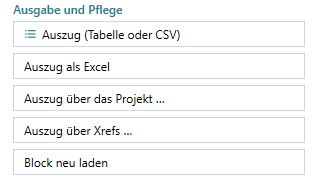
- Current Drawing page › Extract (table or CSV).
- By default LuaCAD asks where the list goes: Into the drawing (the table hangs at the cursor, a click places it) or Into a file (CSV or Excel per the list options); Cancel outputs nothing.
- Extract as Excel writes the same list straight to
.xlsx– the save dialog box suggests "<drawing>_bloecke.xlsx", then the file opens.
The extract counts all blocks of the library in model space: per row count, level, block and one column per property field with the attribute "offer in lists" – identical rows are added up. If a required field is empty, a note comes first (output anyway or show the parts). Without blocks the command line says "no blocks in the drawing".
Extract across several drawings
Goal: count the blocks of several drawings of the project or of the xrefs in one list.
- Current Drawing page › Extract across the project … or Extract across xrefs ….
- In the dialog box check the drawings – of the project, or the drawing and its xrefs (per insertion).
- Next – the output works as for the extract.
The drawings are only read, never opened. How the dialog box works in detail is described for Ventilation 3D: Across several drawings.
Reloading a block
Goal: bring all insertions of a block up to date after a change to its DWG.
- Current Drawing page › Reload block.
- Click an inserted block.
- LuaCAD reads its DWG again: all insertions show the state of the DWG, including the 2D version and the definitions of the connector sets. The values of the blocks (property fields, dimensions) stay. The command line says "'…' reloaded – all insertions show the state of the DWG."
A block shown as "connectors only" reloads its full definition. If the DWG cannot be found on this computer (another computer, moved), the command line says so with its path in the library.
Clashes
Goal: check whether blocks with solids collide with pipes, ducts or building elements.
At the bottom of the Current Drawing page is the Clashes section – the same as in the other plug-ins: rule set, scope, Check and the list of clashes; a click on a row shows the location. All 3D plug-ins are checked, IFC elements on request; from the Block Library only blocks with solids count. If clash detection is missing in the installation, the section is gray. Details: Piping 3D › Checking for clashes.
IFC export
Goal: put the fixtures with their properties and connectors into an IFC model.
The IFC export is on the ribbon › LuaCAD tab › Exchange ribbon panel – it takes the whole drawing with all plug-ins. A fixture goes in with the IFC class determined by its code (for example a toilet as a sanitary terminal), with its property fields and its connectors. See Piping 3D › IFC export.