
Property fields
Property fields are the data you write to a part: room, plant, construction phase, tag, status or a field only your office needs. They appear in the Properties palette of GstarCAD, in lists, in annotation and in the IFC – the same way in all plug-ins. You define once which fields exist; this applies to all plug-ins and all drawings.
What a property field is
A part has two kinds of data:
- Properties are calculated by the plug-in itself: nominal diameter, length, system, elevation. They appear in the Properties palette in the LuaCAD category and change with the part.
- Property fields are entered by you. They appear in the LuaCAD property fields category and stay until you change them – even when the plug-in rebuilds the part.
Every field has a few fixed attributes:
- Default fields (with a lock) come with LuaCAD. They cannot be deleted or renamed, only hidden; you may still set required, IFC target and PCF number on them.
- Custom fields are created by your office. They get the numbers 50 to 99.
- Part group: every field applies to certain parts – for example only to valves, or to all parts of all plug-ins. Each plug-in knows its part groups (Piping 3D: pipe, pipe segment, fitting, valve, manufacturer product, custom part, symbol, connector, insulation).
- always or on request: a field "always" is on every part of its part groups, even when empty. A field "on request" only appears once you attach it to a part (palette › Add field …).
- Suggestion: an empty field shows a suggestion – the description of the part, the room it stands in, the value of its pipe or the fixed suggestion of the field ("planned" for the status). Only what you enter is saved.
The default fields
| No. | Field | On which parts | Asked before inserting | Notes |
|---|---|---|---|---|
| 1 | Article number | all except pipes and openings | yes | from the catalog; IFC additionally ArticleNumber |
| 2 | Description | all | yes | from the catalog; never from the pipe; IFC additionally ModelLabel |
| 3 | Manufacturer | all except pipes and openings | yes | from the catalog; IFC additionally Manufacturer |
| 4 | Type | valve, manufacturer product, fixture, custom part, block, duct accessory | yes | IFC additionally ModelReference |
| 5 | Room | all | no | suggestion = the room the part stands in; never from the pipe |
| 6 | Remark | all | yes | never from the pipe |
| 7 | eBKP-H | all | no | – |
| 8 | Plant | all | yes | choice; your office maintains the entries |
| 9 | Status | all | no | planned, ordered, installed, tested; suggestion "planned" |
| 10 | Construction phase | all | no | – |
| 11 | Additional description | all | no | never from the pipe |
| 20 | Tag | Piping 3D: valve, manufacturer product, custom part | yes | renumbered when copying; IFC additionally IfcElement.Tag |
| 22 | Test pressure [bar] | Piping 3D: pipe | (for pipes) | – |
| 25 | Fire protection | Ventilation 3D: duct, round duct, fitting, duct accessory | no | –, EI 30, EI 60, EI 90 |
| 26 | Airflow [m³/h] | Ventilation 3D: pipe, duct accessory | (for pipes) | – |
| 30 | Sound insulation | Drainage 3D: pipe segment, fitting | no | normal, increased |
| 31 | Fire collar | Drainage 3D: pipe segment | no | yes / no |
| 32 | Leak test | Drainage 3D: pipe | (for pipes) | yes / no |
| 35 | Number | opening | no | sequence number; renumbered when copying; IFC additionally IfcElement.Tag |
| 36 | Approval | opening | no | requested, approved, completed; suggestion "requested" |
| 37 | Fire stopping | opening | yes | –, EI 30, EI 60, EI 90 |
"(for pipes)": the default fields of a plug-in on the pipe also appear in the palette area Property fields of the next pipe. "IFC additionally": the standard property set the field also goes to by default (see Output). By default no default field is required and none has a PCF number.
Values from the catalog
Article number, description and manufacturer of a catalog part (manufacturer product, fitting or pipe segment from a catalog) come from the catalog. On such a part they are not a property field: the palette shows them read-only in the LuaCAD category, and neither the palette nor "Select by properties" overwrites them. On a custom part, a block or a valve without a catalog value you enter them like any other field.
Values from the pipe
A part without an entry of its own takes the value of its pipe – for every field that applies to the pipe and to the part group of the part (plant, status, construction phase, your custom fields …). Description, additional description, room and remark never come from the pipe: they describe the part itself. The values are read, not copied – change the pipe, and all its parts without an entry of their own follow.
Creating a custom field
Goal: offer a field your office needs on the parts of the plug-ins – with name, type, part groups and output.
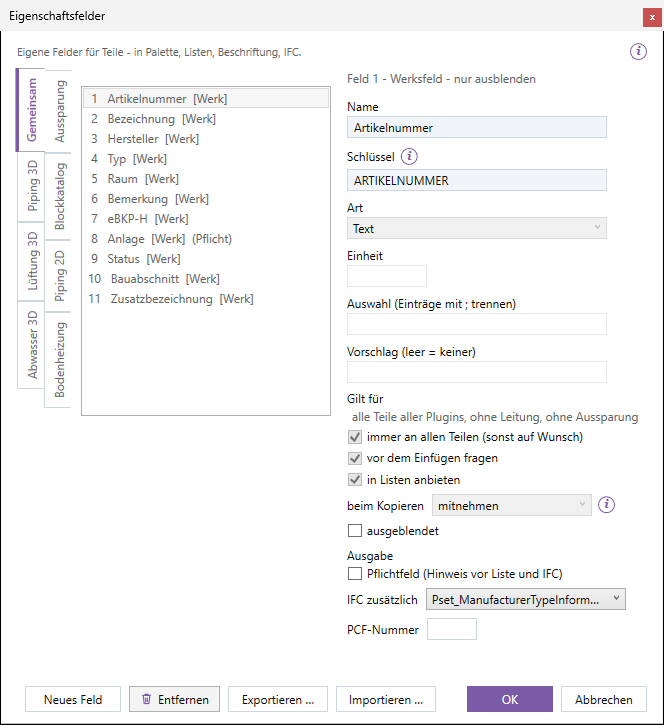
- In the palette of a plug-in gear menu › Properties › Property fields … – the dialog box opens on the tab of this plug-in (from the Annotation palette on Common).
- Choose the tab: Common for a field on all parts of all plug-ins, otherwise the tab of the plug-in.
- New field – it gets the next free number from 50 and is first called "New field". Enter the Name; the Key is made from the name.
- Choose the Type (text, number, whole number, length (mm), yes / no, choice from a list); for a choice, the entries separated by
;. - Under Applies to, check the part groups (on a plug-in tab all are checked by default).
- Set the check boxes: always on all parts, ask before inserting, offer in lists, Required field; if needed IFC additionally and PCF number.
- OK – the field applies at once in all plug-ins; the palettes rebuild their fields.
Every attribute in detail: Property fields (dialog box).
Values in the Properties palette
Goal: enter the fields of one or many parts, without a command and without a dialog box.
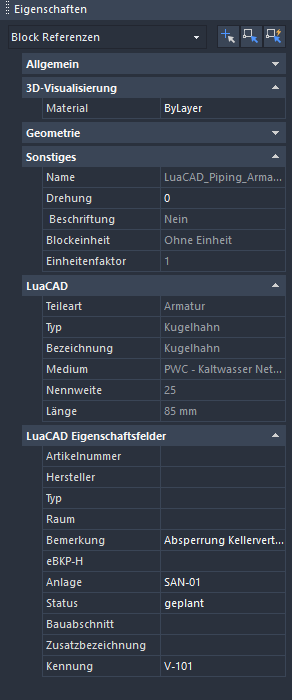
- Click a part (without a command) – or select several.
- In the Properties palette, the LuaCAD property fields category: one row per field.
- Enter the value or pick it from the list (choice, yes / no). Numbers calculate ("600+400").
- Several parts: the palette shows the common fields; one entry applies to all selected parts, in one undo step.
- Empty shows the suggestion. An entry equal to the suggestion saves nothing; clearing brings the suggestion back.
- Tag: a part without a tag shows "(next free: V-004)". A + in the field assigns it; with several parts each gets its own (V-004, V-005 …).
- Add field … (last row of the category): attaches a field "on request" to the selected parts ("add: …") or removes it again ("remove: …").
Fields of a whole pipe
Goal: write a value once to the pipe – every part of it without an entry of its own takes it (see Values from the pipe).
- In the palette of Piping 3D, Piping 2D, Ventilation 3D or Drainage 3D gear menu › Properties › Property fields of a pipe ….
- Click a part or a line (command line: "Click a part or line …"). LuaCAD refuses a part of another plug-in – then use the gear menu of that plug-in.
- In the dialog box Property fields of the pipe (in Ventilation 3D: of the duct network) enter the values, OK. LuaCAD writes them in one undo step; the command line reports how many objects were changed.
Properties before inserting
Goal: give every new part its fields right when inserting – with a tag that counts up.
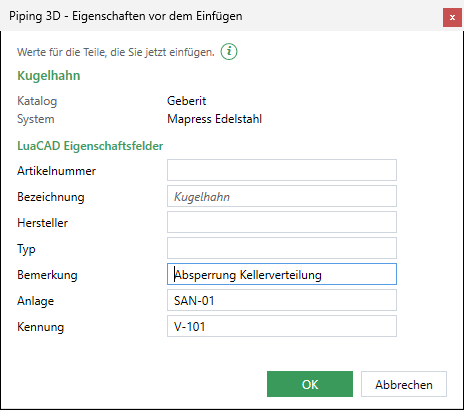
Two ways, the same fields (all with ask before inserting that apply to the part):
- Check box "Show properties before inserting" above a parts list (Piping 3D: Symbols, Custom parts, Products, Generic valves; Ventilation 3D: Duct accessories, Products, Custom parts; Piping 2D: Symbols, Manifold; Drainage 3D: Custom parts; Floor Heating: Manifold). Off by default, remembered per list.
- Palette area "Property fields of the next …" (pipe, opening, loop; in the Block Library "Properties of the next block"): expand it and enter values – they apply to every part created afterwards and stay remembered until you clear them. Collapsed, it shows "no values" or "2 filled in".
Procedure with the check box:
- Set the check box, choose the part, Insert.
- The dialog box appears, filled with the values of the last time for this type, otherwise with the suggestions. The tag is set to the next free one.
- OK – the part hangs at the cursor. Every part you insert now gets the values; the tag counts up by one per part.
- Esc at the cursor returns to the dialog box, with the values; Cancel in the dialog box ends.
Required fields before lists and IFC
Goal: before a list or the IFC export, find out where an important field is still empty – and fill it in right away.
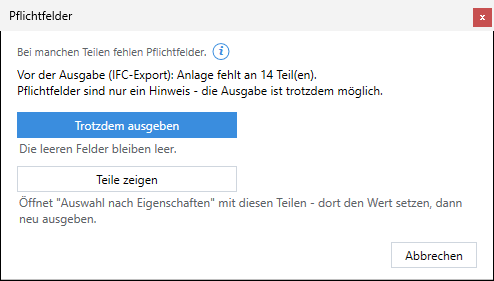
By default no field is required. Once you make a field a Required field in the Property fields dialog box, LuaCAD counts before every list (parts list, bill of materials, extract …) and before the IFC export on how many parts it is empty. Only parts of this drawing that carry the field count – not parts of a reference or of another plan.
- Start the list or the IFC export. If a required field is missing, the confirmation appears; the command line says the same.
- Output anyway – the output runs, the empty fields stay empty.
- Show parts – nothing is output; Select by properties opens with exactly these parts, the condition "<field> empty" and the same field under Set a value on all matches. Set the value, then output again.
- Cancel – nothing happens.
Required fields are only a note: the output is always possible.
Property fields in the output
All outputs read the same values: the entry on the part, otherwise the value of its pipe, otherwise the suggestion.
| Output | How the field gets there | Example |
|---|---|---|
| Annotation | Placeholders {Feld:KEY} (value) and {Feldname:KEY} (name) in the content of a template – see Fields of a template. | {Feldname:FIRE_COMPARTMENT}: {Feld:FIRE_COMPARTMENT} → "Fire compartment: FC-02" |
| Lists | Every field with offer in lists can be chosen as a column when laying out a list (Design list …); column heading = name. | column "Plant" in the parts list |
| IFC | Every value is in the property set LuaCAD_Eigenschaftsfelder (common default fields and custom fields; the default fields of a plug-in in a property set of the plug-in). With IFC additionally it also goes to a standard property set or to the tag of the element (IfcElement.Tag; without a value the item number is there). If two fields go to the same target, the one with the lower number that has a value wins. | article number → Pset_ManufacturerTypeInformation.ArticleNumber; tag → IfcElement.Tag |
| PCF | A field with PCF number n goes into the PCF export (process piping) as COMPONENT-ATTRIBUTE<n>; each number belongs to exactly one field. | fire compartment with PCF number 5 → COMPONENT-ATTRIBUTE5 FC-02 |
Where IFC and lists are in the plug-in: IFC export, Parts list.
Values when rebuilding and copying
When a plug-in rebuilds parts (generate 3D, break in, lengthen, shorten, replace), the values go along: a new pipe segment gets them from the old one that covered most of the same stretch (cut in two: both halves); a fitting or a valve from the old part at the same place; a replaced valve gets all values. A tee newly broken into a pipe gets nothing of its own – it reads the values of its pipe.
When copying, the rule when copying decides per field: keep (default), clear or renumber (by default the tag and the number of an opening: V-007 becomes the next free number of this pattern in the drawing, for example V-012).
Select by properties
Goal: find parts of all plug-ins by their properties and property fields, select them in GstarCAD and write a value to all matches. GstarCAD cannot do this itself – its Quick Select does not know the fields of LuaCAD.
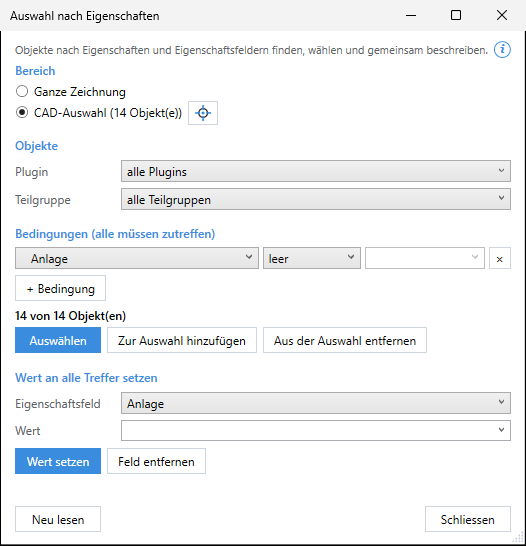
- Ribbon › LuaCAD tab › Tools ribbon panel › Select by properties (or LuaCAD menu › Select by properties …). If objects are already selected, they become the scope.
- Scope: Entire drawing or Current selection; the crosshair next to it selects the objects again (Enter = done). In the current selection every foreign object counts as well – so objects without a plug-in can get a custom field too.
- Objects: the plug-in and the part group (all by default). "other objects" are objects without a plug-in.
- Conditions: one property, one comparison and one value per row; + Condition adds a row, × removes it. All conditions must be met. The list of properties is ordered in categories: LuaCAD (from the plug-in), LuaCAD property fields, GstarCAD (layer, color …). The value list suggests the values that occur in the scope.
- The row below keeps counting: "7 of 52 object(s)". Select selects the matches in GstarCAD (in plan view LuaCAD zooms to them) – the Properties palette then shows their common fields. Add to selection and Remove from selection work with the existing selection.
| Comparison | True when the value … | Example |
|---|---|---|
| is / is not | is equal or not (case does not matter; numbers as numbers) | DN is 25 |
| contains / begins with | contains the text or begins with it | description contains "ball valve" |
| empty / not empty | is missing or present | tag empty |
| greater than / less than / between | is above, below or within as a number (both limits included) | length between 100 and 500 |
Set a value on all matches
- Under Set a value on all matches choose the property field ("(on request)" follows fields on request).
- Enter the value or pick it from the list.
- Set value – LuaCAD writes it to all matches, in one undo step; the row below reports on how many objects it was set. Remove field deletes the entry on all matches (also a field on request).
- LuaCAD writes a default field only to parts it applies to (the others are reported as skipped). A custom field goes to every match.
- An empty value for a field "always" means Remove field; for a field on request it attaches the field empty.
- Values from the catalog stay as they are (see Values from the catalog).