
IFC import and IFC export
IFC is the open exchange format for building models. LuaCAD uses it in both directions:
- IFC import – the architect's model (walls, slabs, doors, spaces …) becomes the base of your project: one drawing per level, shown as an xref in your discipline drawings.
- IFC export – your pipes, ducts, fixtures and openings go back to coordination as an IFC file, with classes, properties, systems and connectors.
Both work for all plug-ins – there is one import and one export, not one per plug-in.
Where to find IFC
| Where | What |
|---|---|
| Ribbon › LuaCAD tab › Exchange ribbon panel | IFC import and IFC export |
| LuaCAD menu in the menu bar | IFC import … and IFC export … (GstarCAD shows the menu bar only when it is turned on) |
| Right-click in the drawing › LuaCAD | IFC export … (with selected objects: only these), IFC import …, IFC properties (architecture) … |
| Project wizard, IFC step | Create a new project with an IFC right away – see Project wizard: IFC |
| Project palette › right-click an entry | Update IFC … – read in a new version (only in a project created from an IFC) |
| Project palette › IFC classes area | Hide and show element types of the IFC xrefs |
Importing an IFC
Goal: create a project from the architect's IFC file – with levels, elevations, spaces and one architectural drawing per level.
- Open a drawing that belongs to no project (for example the empty start drawing) and choose IFC import. The command line says that a project is created from the IFC file with the project wizard.
- The project wizard opens at the IFC step and shows the file dialog box right away. Choose the IFC file (
.ifcor.ifczip). LuaCAD reads it at once, still without geometry – usually in less than a second. - In the IFC step check: the discipline of the IFC, the building (only if there are several), the location, whether the elevation of an IFC level is finished floor or top of slab, which IFC levels become project levels and which element types are imported. Field by field: Project wizard: IFC.
- The other steps as for any new project: project name and folder, structure, levels (prefilled from the IFC), disciplines, drawings.
- Create project. Now LuaCAD creates the geometry; a progress window shows each level, Esc cancels without creating anything.
- At the end a report in the command line lists the levels, elements, spaces and what was not imported.
If the drawing already belongs to a project, IFC import reads a new IFC version for this project instead.
What is in the drawing afterwards
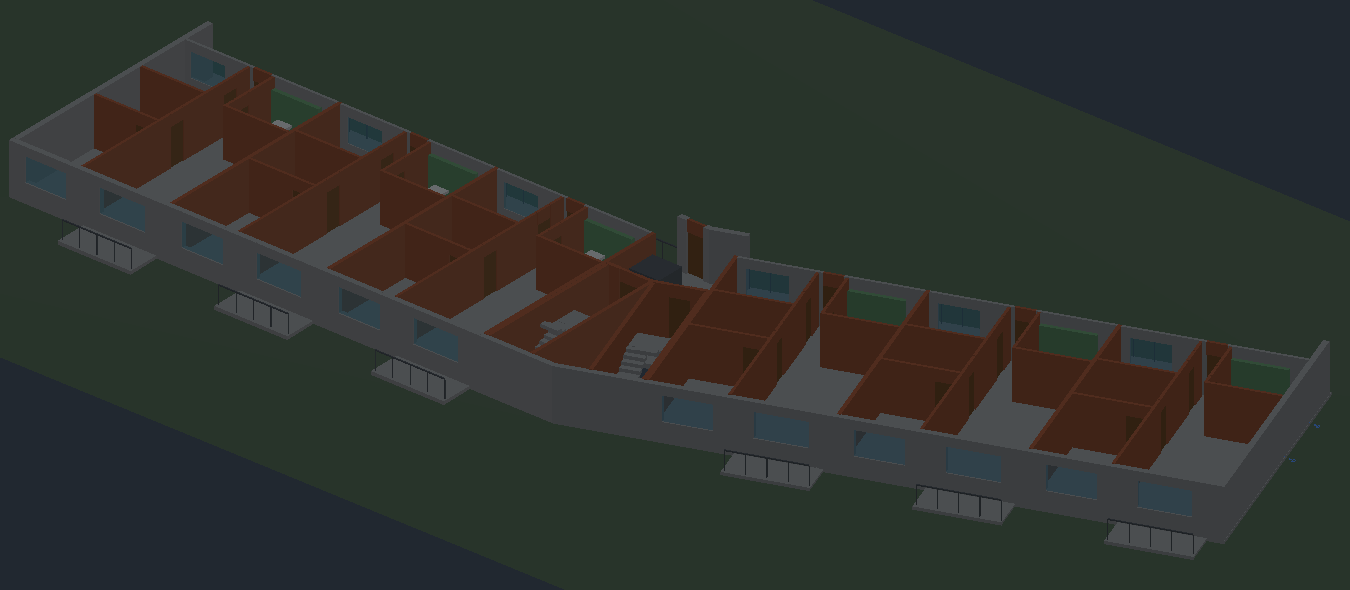
| What | How it looks |
|---|---|
| Architecture per level | A separate drawing per level, in the discipline of the IFC. If that discipline also has 2D plans, it gets its own IFC discipline next to it – two separate xrefs. |
| Building elements | One 3D solid per element; if an element is not closed, a mesh. Color from the IFC. |
| Layers | One layer per IFC class, for example LuaCAD_IFC_IfcWall, LuaCAD_IFC_IfcDoor, LuaCAD_IFC_IfcSlab – this is how you hide element types (IFC classes). |
| Spaces | One mesh per space on LuaCAD_IFC_Space (off by default, 80 % transparent) and the space number on LuaCAD_IFC_Space annotation. Your pipes and fixtures get their space from it – for schedules, annotation and the export. |
| Terrain | The representation of the site in a terrain drawing of its own, attached as an xref in every level on LuaCAD_IFC_Terrain. |
| Elements without a level | In a drawing of their own, attached as an xref in every level on LuaCAD_IFC_Not assigned – can be turned off. |
| Substitute bodies | If the geometry tool delivers nothing for an element, a bounding box stands there on LuaCAD_IFC_Substitute bodies; the report names the elements. |
| Discipline drawings | Every discipline drawing has the architecture of the same level loaded, the other levels unloaded. No alignment is needed – the IFC brings origin and units. |
| Data on the element | Class, name, type, level, space, material and GUID are stored on the element; all other properties LuaCAD reads from the project's IFC when needed (Showing properties). |
Location: offset and rotation
Many models lie far from the origin (state plane or national grid coordinates) or at an angle. LuaCAD draws in small, straight coordinates: first the model is moved by the offset, then rotated by the rotation angle. The wizard prefills the offset from the IFC; a detected rotation only appears as a suggestion with Apply – nothing is ever rotated automatically. The IFC export calculates both back, so your model and the architect's lie exactly on top of each other.
Large files
The import never rejects a file. For a large model or little free memory it creates the geometry in batches one after the other, fetches elements without geometry in further runs and writes a very large level into partial drawings that are attached as xrefs. This takes longer but needs little memory. In the IFC step of the wizard you see beforehand how much geometry to expect; with Load off you leave out whole levels, with the coarser mesh for curves the geometry gets smaller.
Reading in a new IFC version
Goal: bring the architect's revised IFC into the project – the architecture is replaced completely level by level, your discipline drawings stay untouched.
- Close all architectural drawings of the project (otherwise LuaCAD stops and asks you to close the open drawing).
- In a drawing of the project choose IFC import – or on the project palette right-click an entry and choose Update IFC ….
- Choose the new IFC file; the file dialog box starts at the previous one.
- The new IFC version dialog box asks for confirmation and shows the location. The values of the project apply; if the new version lies differently, it says so in orange. OK.
- If the levels have changed (new level, different elevation, different name), assign them in the Match levels dialog box.
- LuaCAD replaces the architecture level by level (the previous one goes to the archive folder), creates one drawing per discipline for new levels and reloads the xrefs in open drawings. The command line says how many drawings were replaced and how many xrefs were reloaded.
The choices of the first import still apply: short names of the levels, helper levels, levels not loaded, element types turned off, building, location.
Hiding IFC classes
Goal: hide one element type of the architecture in all IFC xrefs at once – for example railings or coverings that block the view of your pipes.
- On the project palette expand the IFC classes area. The list shows the classes of all loaded IFC xrefs of the active drawing.
- Clear the check box in front of a class: its layers are frozen in all IFC xrefs of this drawing.
- Select the check box again or click Show all to bring them back.
The choice applies per drawing and is kept when you save, reload and open. It is not a step in the undo history – you go back with the check box.
Showing the properties of a building element
Goal: look up everything the architect has given an element or space – for example the fire rating of a wall before an opening.
- Right-click in the drawing › LuaCAD › IFC properties (architecture) ….
- Click an element – also inside an xref. Enter without a click ends.
- The IFC properties window first shows the basic data (class, name, type, level, space, material, GUID …), below it every property set of the IFC, expanded; data of the type are marked "(Type)".
Shorter in the Properties palette: select an element in the architectural drawing itself, and class, name, type, level, space, material and GUID are in the LuaCAD category. In schedules and annotation you take any IFC value with a placeholder like {IFC.Pset_WallCommon.FireRating}.
Exporting an IFC
Goal: export the parts of all plug-ins as an IFC file – for coordination with architecture and structure, for clash detection and viewers.
- If you only want to export part of the drawing, select the objects first.
- Ribbon › LuaCAD › Exchange › IFC export.
- In the IFC export dialog box check file, schema and scope; LuaCAD remembers the other settings from last time.
- OK. If a required field is empty on a part, LuaCAD asks first: export anyway, or show the parts (then nothing is written).
- A progress window shows reading and writing; Esc cancels, an existing file then stays unchanged.
- The command line reports the result, for example "IFC export (IFC4): 37 elements, 3 levels, 8 systems, 24 of 30 connectors connected - 1.2 s" and the path. With Show file afterwards the file opens in the program Windows knows for
.ifc.
What is exported
The export takes the same parts as the schedules. The architecture of the xrefs is not exported; only the spaces your parts are in are written as a reference.
| Plug-in | In the IFC |
|---|---|
| Piping 3D | Pipes (as exact cylinders), fittings, valves, products, custom parts, insulation – with connectors, connected to their neighbors |
| Drainage 3D | Pipes, fittings, drains, chambers, interceptors – with connectors and flow direction |
| Ventilation 3D | Ducts and round ducts (as exact boxes or cylinders), fittings, units, grilles and diffusers, insulation |
| Block Library | Fixtures with the class given by their abbreviation (a toilet as a sanitary terminal) and their connectors; every block once as a type with geometry |
| Openings | The 3D openings as a provision for void, with the sizes including clearance – see Openings › IFC |
| Piping 2D, floor heating | nothing – 2D pipes only after converting them to Piping 3D |
Systems are created per system (for example domestic cold water, domestic hot water), below them per riser or network. Every part belongs to the level in whose elevation range its lowest point lies.
Properties in the IFC
| Property set | Content |
|---|---|
LuaCAD_Teil | What all plug-ins know: part type, item number, description, catalog, DN, length, system, network, level, space, insulation, elevations, plug-in … |
LuaCAD_Piping, LuaCAD_Abwasser, LuaCAD_Lueftung … | What only the plug-in knows (pipe spec, slope, profile …) |
LuaCAD_Eigenschaftsfelder | Your property fields and the attributes of other blocks |
LuaCAD | All values of the LuaCAD_ sets once more in one set – convenient in viewers |
Pset_ManufacturerTypeInformation | Manufacturer, article number, description, type – which field goes where you set per field in the property fields (IFC column) |
Pset_ManufacturerOccurrence | Serial number, bar code, batch – only if a field points there |
Pset_…TypeCommon | IFC4 only: reference (article number), for pipes nominal diameter and outside diameter, for ducts width and height |
LuaCAD_Daemmung, LuaCAD_Geschoss, LuaCAD_Raum | On the insulation, on the level, on the space |
The tag of a valve or the number of an opening is written as the tag of the element, otherwise the item number. The chosen cost classification is added as a classification, the Author as the author.
Several project drawings in one file
If the drawing belongs to a project, the dialog box offers several drawings of the project in one file.
- Click this option – the list of the project drawings (discipline and level) becomes available, the suggested file name becomes the project name in the project folder.
- Check the drawings (All, None); the open one is preselected.
- OK. The other drawings are only read, not opened. Every part belongs to the level of its drawing and has the same GUID as in the export of the single drawing.
Coordinates and GUIDs
- The origin of the drawing is the origin of the IFC project, the elevation Z is the absolute elevation.
- If the project comes from an IFC import with offset or rotation, the export calculates back into the coordinates of the original IFC (section Location of the IFC import in the dialog box).
- With Georeference you state where the origin lies on the map – only needed if other project members align the model by national grid coordinates. Example: east 2600120.457, north 1200340.25, elevation 432.5, rotation 0 – the fields keep the values to the millimeter, the rotation to 4 decimals.
- Every element keeps its IFC GUID from export to export, even after regenerating 3D; a copy gets its own. This keeps issues and model comparisons in the coordination software assigned. Because the GUIDs are written into the drawing, the export is a step of its own in the undo history.