
Help in the program
LuaCAD explains itself where you are working. Every plug-in uses the same kinds of help:
| Help | When it appears | Section |
|---|---|---|
| Getting started card | when you open a palette page, next to the palette | Getting started |
| Insertion help | before a workflow at the cursor, with a picture | Insertion help |
| "i" | on a click, at a page, a dialog box or a row | The "i" |
| Help button, gear menu › Help | on a click, opens the online help | Opening the online help |
| Issues list | after a workflow, when something was not built the way it should be | Issues list |
Whatever you dismissed, you get back in the LuaCAD settings.
Getting started
Goal: get to know a palette page field by field.
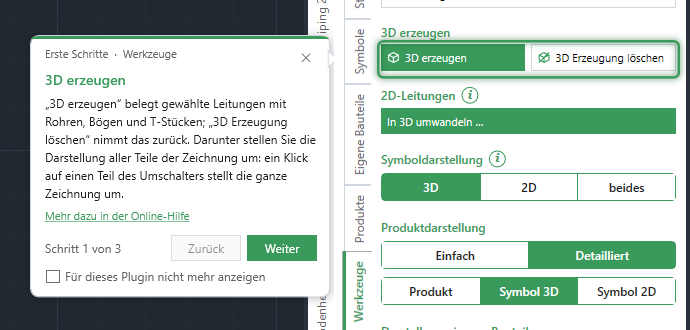
- Open a page of the palette. If it has cards, the card appears to the left of the palette, and a highlight frame in the color of the plug-in points to the field in question.
- Next goes to the next field, Back one step back; at the last step the button is called Finish.
- More in the online help opens the same page in detail in this help (only if there is a section for it).
- Finish or the close button closes the card. Without the check box it does not come back by itself in this session, but it does at the next start of GstarCAD.
| Switch | Effect |
|---|---|
| Check box Don't show again for this plug-in (then Finish or the close button) | Getting started and all insertion help no longer appear by themselves in this plug-in. The same switch as gear menu › Help › Getting started active and the check box of the plug-in in the LuaCAD settings. |
| Gear menu › Help › Getting started active | On or off for this plug-in; switching it on shows the card of the open page right away. |
| Gear menu › Help › Show getting started | Releases all pages of the plug-in again, including dismissed insertion help, and shows the card of the open page at once. |
| "i" of the page › Show step by step | The cards of this page from step 1 – even if Getting started is off. |
The card stays usable even while a dialog box or an insertion help is open. It closes by itself when you choose another plug-in or no drawing is open any more.
Insertion help
Goal: see before a workflow at the cursor what the clicks do – before the first click counts.
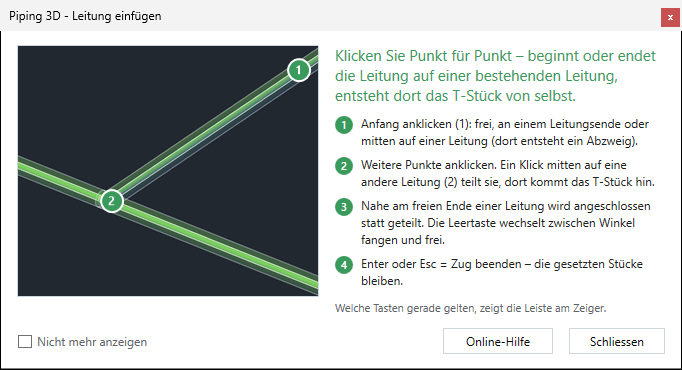
- Start a workflow that does not explain itself – such as Insert a pipe, breaking a part into a pipe, Connect or picking an opening. This applies to the palette button and to the typed command.
- Before the first click the window appears: on the left the picture with numbered clicks, on the right a lead sentence and at most four steps with the same numbers. Keys are named in the text ("Z", "Spacebar"); the bar at the cursor then shows which ones apply.
- Close, Enter, Esc or the close button close the help – the workflow starts anyway. The next time you start the function it comes again.
- Online help opens the same workflow in detail in this help (only if there is a page for it).
- Only the check box Don't show again hides this one help; all others keep coming.
Viewing without a workflow: the "i" of the palette page lists the insertion help of this page ("Insertion help: Insert pipe"). A click shows the window without a command – even if the help is hidden; the check box then shows whether it still comes by itself. Clear the check box and close = it comes again.
The "i" of a page, a dialog box and a row
Goal: learn in one sentence what a page, a dialog box or a field does.
- Page: the "i" in the title bar of the palette, to the left of the gear menu. A click shows the name of the page, a short sentence and the explanation; below it, where available, Show step by step (the Getting started cards), one Insertion help: … per insertion help of this page and More in the online help. A page without an explanation has no "i".
- Dialog box: a short sentence with an "i" at the top of the dialog box; a click shows the explanation and below it More in the online help if there is a section for it.
- Row or field: the "i" next to the label or the title of a section. If a value comes from a setting, the "i" also tells you where to change it.
If the "i" says that more options are available with a right-click, the list or field has a shortcut menu.
Opening the online help
| Where | What it opens |
|---|---|
| ? Help button in the action bar at the cursor | The section of the running function in this help (otherwise the page of the plug-in). Just click it – the function at the cursor keeps running. The F1 key belongs to GstarCAD. |
| Gear menu › Help › Help | The help of the plug-in. In the same section: Info, Getting started active, Show getting started. |
| "More in the online help" | The matching section for the page, dialog box or card. |
| Online help button in the insertion help | The same workflow in detail. |
| LuaCAD settings › Help and website | This help, the website. |
The help opens in the browser. Without an internet connection the page stays empty – nothing is lost in LuaCAD.
Switching notices back on
Everything you switched off with Don't show again, Remember answer or don't ask again is in one place: LuaCAD tab › Info › LuaCAD settings, on the right Notices and prompts.
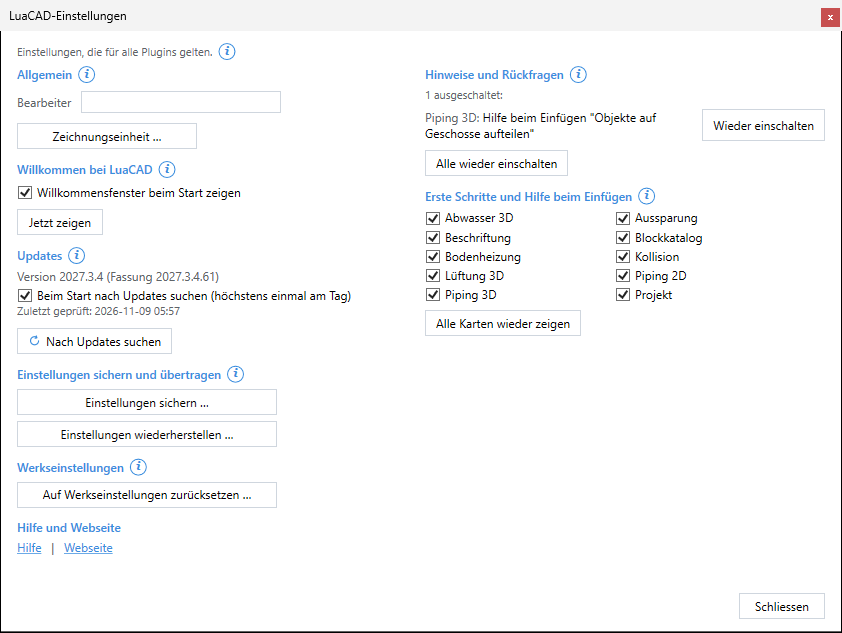
| Element | Effect |
|---|---|
| List | Only what is switched off right now, per row the plug-in (or "General") and what: welcome window, dividing across a level boundary while drawing, list of issues after assigning, editing with CAD commands, 2D objects after converting, isometric without weld, connecting to another system (Drainage 3D), other system or level at the start (Drainage 3D), heated areas at a new leader corridor (Floor Heating), every hidden insertion help with its title (such as "Piping 3D: insertion help "Insert pipe""). If nothing is off: "No notices or prompts switched off." |
| Switch on again | This one place back to its default – the prompt or notice comes again. |
| Switch all on again | All rows at once. |
| Getting started and insertion help | One check box per plug-in – the same as gear menu › Help › Getting started active. |
| Show all cards again | Releases all cards and all insertion help of all plug-ins, switches plug-ins that were off back on. |
Everything applies at once. Check boxes you can see in the palette or in an options dialog box (such as "Dialog box before inserting") are not in the list – switch them there. Reset to default settings, area "Notices, prompts and Getting started", resets everything at once (see Default settings).
Example: switching a dismissed help back on
Goal: get the insertion help for "Insert pipe" in Piping 3D back after you checked "Don't show again".
- Ribbon › LuaCAD tab › Info ribbon panel › LuaCAD settings.
- On the right under Notices and prompts there is the row "Piping 3D: insertion help "Insert pipe"" (the title of the help, as it also appears at the top of the help window) – next to it Switch on again.
- At the bottom it says that 1 notice was switched on again and that it applies immediately; the row is gone.
- Check that under Getting started and insertion help the check box for Piping 3D is set – otherwise no help comes.
- Close; in the Piping 3D palette click Insert: the help with the picture comes again before the first click.
Issues list
Goal: see what a workflow built although it should not be like that – and find the places.
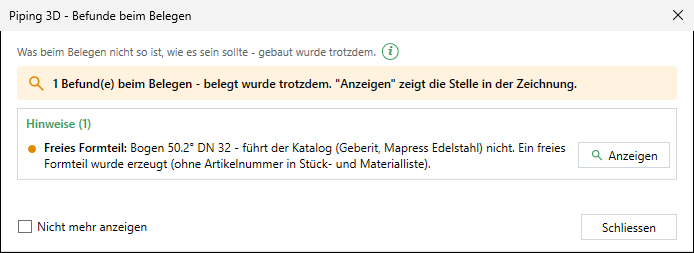
The list only appears if there is at least one issue – after Generate 3D in Piping 3D, with Check risers and as a list for selecting with Divide objects across levels. After assigning, Drainage 3D shows its own result, with the same "Don't show again" switch.
- The list appears at the bottom right of the GstarCAD screen and stays open while you keep working. At the top a sentence, below it the groups Errors (red dot – usually an adjustment is needed) and Notices (orange dot – information), each with its count.
- Show or a click on the row: the view goes to the place, the parts are highlighted, a sphere marks the place. If the place is in another drawing, that drawing is opened or made active. The drawing never changes.
- A second workflow replaces the content of the open list.
- Close removes the highlight and the sphere. If you close the drawing or GstarCAD, the list closes too.
| Message at the bottom of the list | Meaning |
|---|---|
| The objects of this row no longer exist. | The parts were deleted in the meantime. |
| The drawing of this list is not the active one. | The list belongs to another open drawing – switch to it. |
Don't show again (only in the list after assigning): the plug-in no longer shows the list; the command line still names the issues and tells you how to get it back. On again: gear menu › Options › Show list after assigning or LuaCAD settings › Notices and prompts.